

Your Sintropix Mailbox. This guide uses
[email protected] as an example. Use your own Mailbox address instead. To find it in Sintropix, open your user menu, go to Configuración → Integraciones (Settings → Integrations), and open your Casilla de correo (Mailbox). If you don’t have one yet, ask your Sintropix contact.- Use a computer and Gmail on the web (mail.google.com). The Gmail mobile app doesn’t have these settings.
- It takes about 10 minutes.
- If Gmail stops you at any step, see Troubleshooting.
Set up forwarding
1
Open Gmail settings
- In the top right, click the gear icon (Settings).
- Click See all settings.
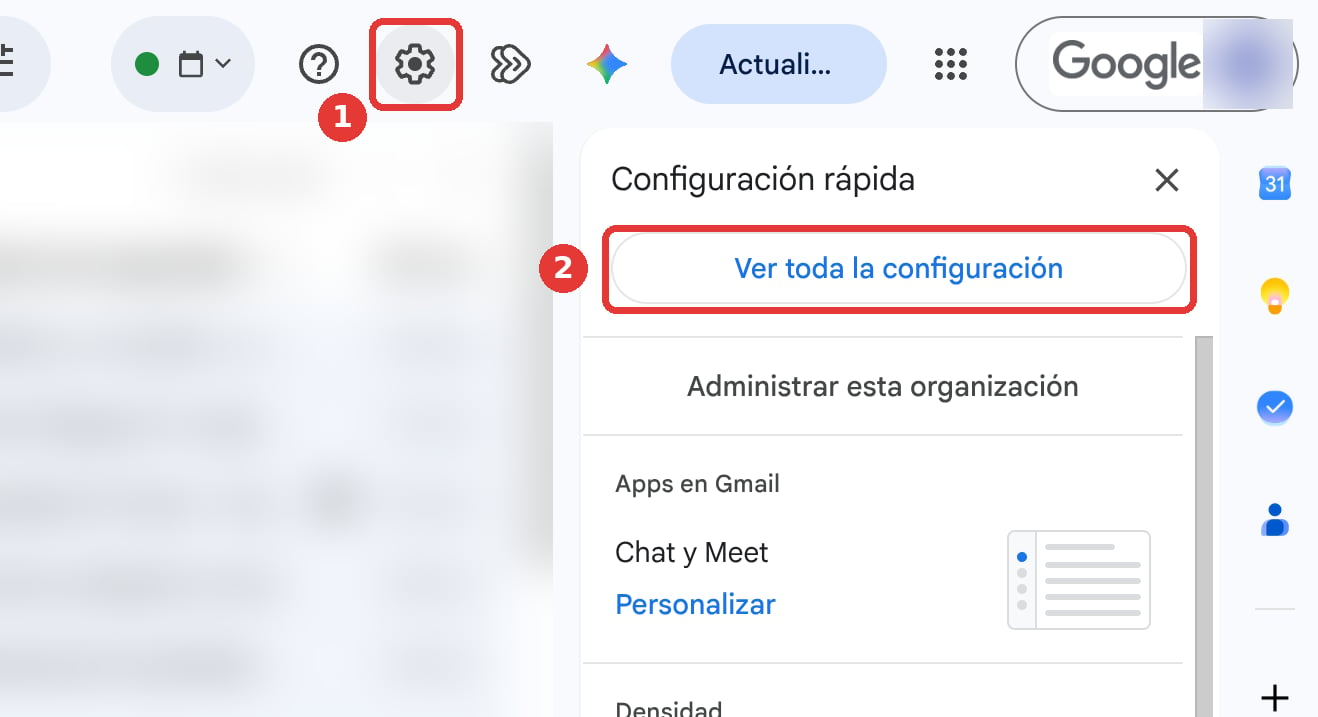
The screenshots in this guide show Gmail in Spanish. The buttons are in the same place in English.
2
Add your Sintropix Mailbox as a forwarding address
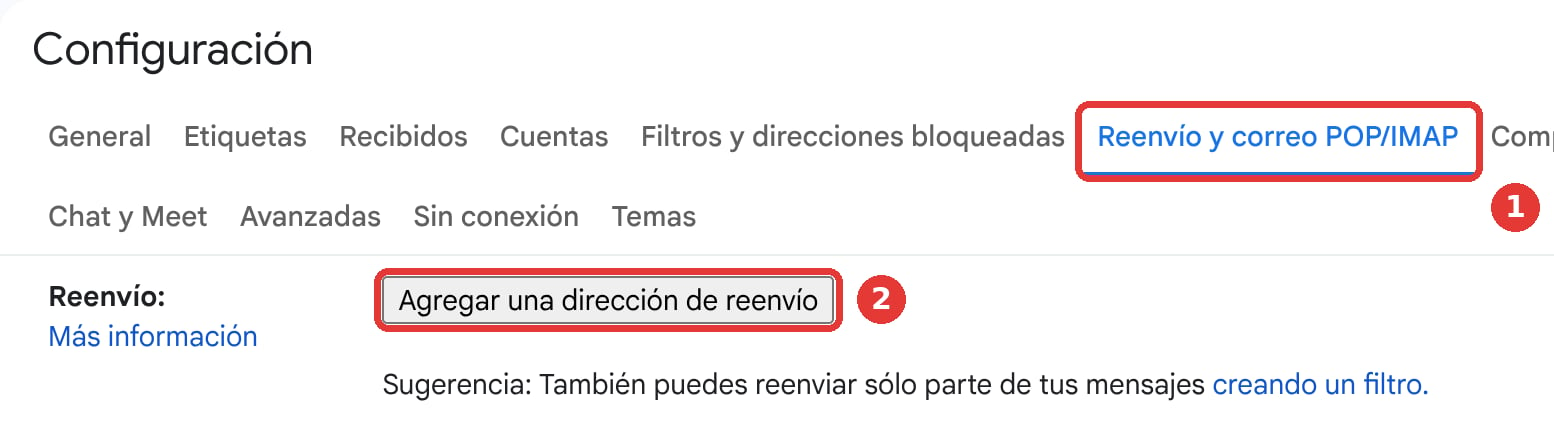
- Click the Forwarding and POP/IMAP tab.
- In the “Forwarding” section, click Add a forwarding address.
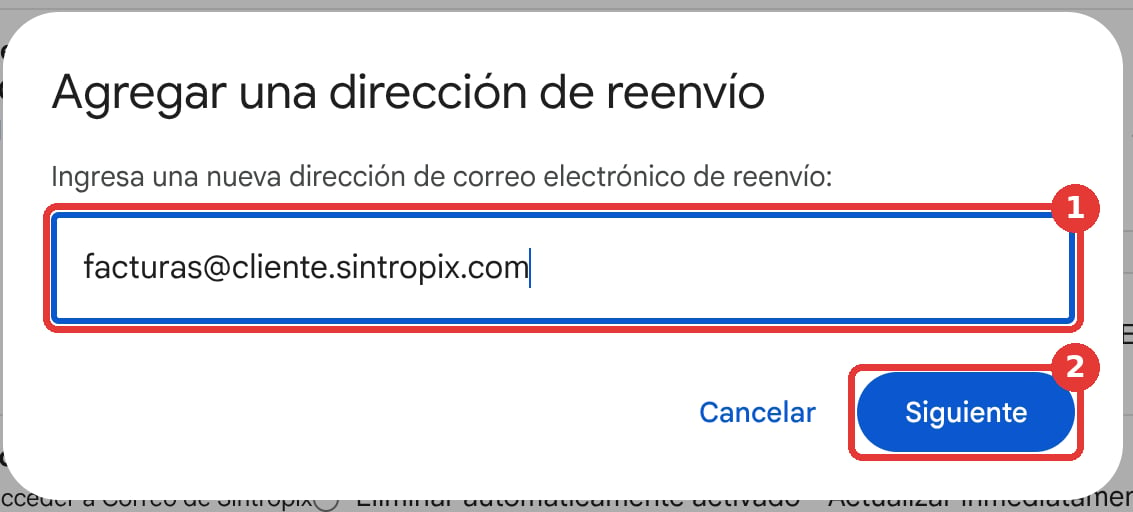
- Enter your Mailbox address, for example
[email protected], and click Next.
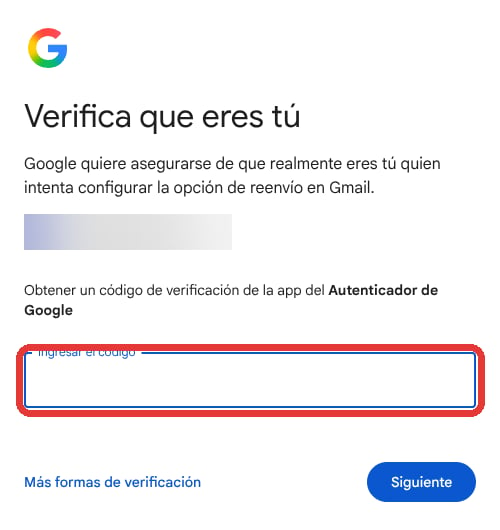
- Google may ask you to confirm it’s you, with your password or a code on your phone. Do that and continue.
- In the window that opens, click Proceed, then OK.
3
Confirm the address
The confirmation email doesn’t arrive in your Gmail. It arrives in your Sintropix Mailbox. Google sends it from
[email protected], its subject mentions Gmail Forwarding Confirmation, and it contains a confirmation link.Get the link in one of two ways:- Ask Sintropix. Write to your Sintropix contact. They can see the email and send you the link.
- Find it yourself in Sintropix. Open your user menu and go to Configuración → Integraciones. Open your Mailbox and click Abrir correo (Open mail). Open the email from Google and copy its link.
- Paste it into a new browser tab.
- Click Confirm.
- Go back to Gmail, open Forwarding and POP/IMAP, and refresh the page. Your Sintropix Mailbox now shows as confirmed.
4
Create the filter that picks which emails to forward
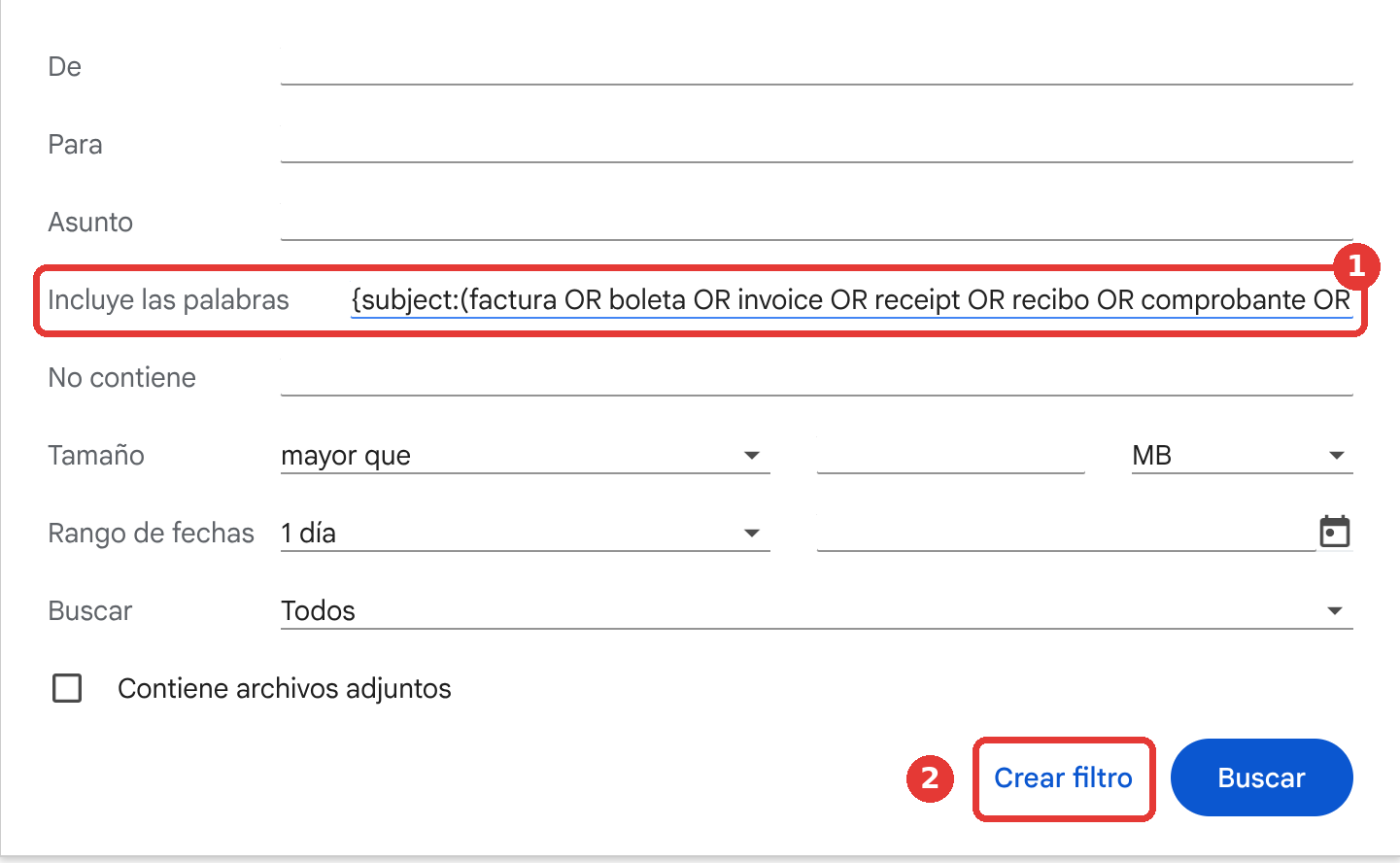
- In the search box at the top, click Show search options (the icon on the right).

- In Has the words, paste exactly this:
- To preview which emails match, click Search, then open the search options again.
- Click Create filter.
5
Forward to your Sintropix Mailbox
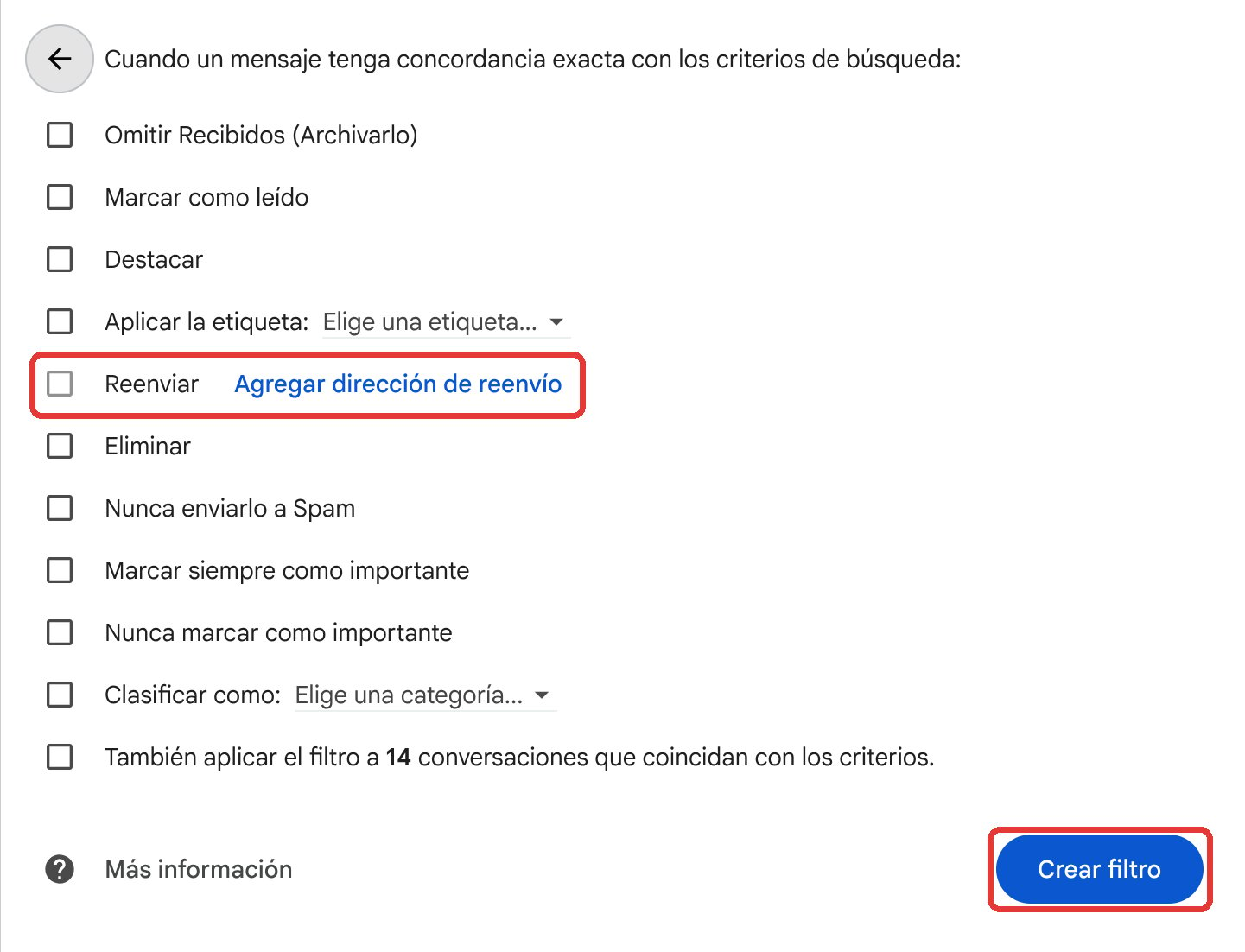
- In the list of actions, check Forward it.
- In the dropdown, choose your Sintropix Mailbox.
- Leave every other action unchecked.
- Click Create filter.
Emails you already have
Before you create the filter, you see the Also apply filter to matching conversations checkbox. It applies the filter’s other actions to older emails, but it doesn’t forward them.
- A few: open each one, click Forward, and send it to your Sintropix Mailbox.
- Many: talk to Sintropix. You can also connect your Gmail to Sintropix with read-only access, so older email can be searched there.
Adjust the filter
The recommended criteria cover most cases. For a different balance, paste one of these into Has the words:
If a supplier always writes from the same address, add it inside the braces:
Forward everything instead
If you’d rather not deal with criteria, you can forward all the email you receive. It’s simpler, but Sintropix also receives email that has nothing to do with accounting. You don’t need the filter with this option.1
Add and confirm your Mailbox
Follow steps 1, 2, and 3 of Set up forwarding.
2
Forward all incoming email
- In Forwarding and POP/IMAP, select Forward a copy of incoming mail to and your Sintropix Mailbox.
- In the second dropdown, choose keep Gmail’s copy in the Inbox.
- At the bottom of the page, click Save Changes.
Troubleshooting
Add a forwarding address is missing, or Gmail says forwarding is disabled
Add a forwarding address is missing, or Gmail says forwarding is disabled
In Google Workspace, your company’s administrator decides whether users can forward email. Ask them to do this, or do it yourself if you’re the administrator:
- Sign in to the Google Admin console at admin.google.com.
- Go to Menu → Apps → Google Workspace → Gmail → End User Access.
- Click Automatic forwarding.
- Check Allow users to automatically forward email to another address. If your console limits forwarding to addresses inside your organization, that won’t work, because Sintropix is outside your company.
- Click Save.
The confirmation email didn't arrive
The confirmation email didn't arrive
- In Forwarding and POP/IMAP, check that the address is spelled right. If it isn’t, remove it and go back to step 2.
- Wait a few minutes and look in Sintropix again. The email can take a moment to show up.
- If it still doesn’t show up, ask Gmail to resend the verification email from the same screen, and let Sintropix know.
Stop forwarding
Stop forwarding
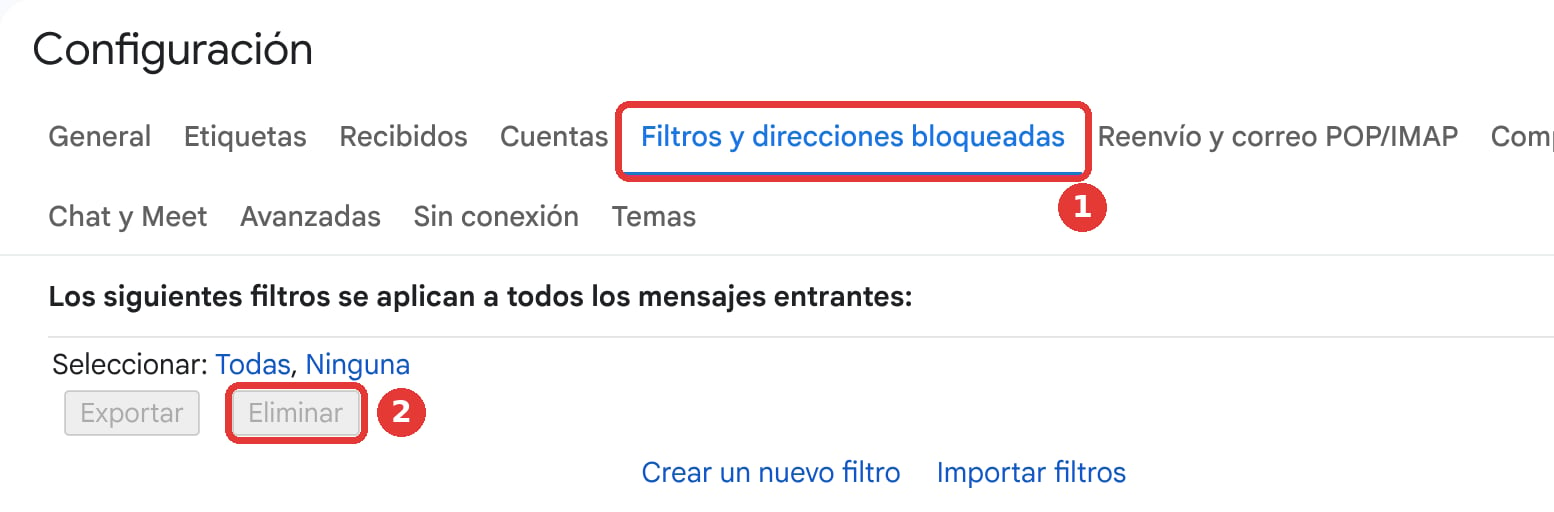
- If you used the filter: go to Settings → See all settings → Filters and Blocked Addresses, check the box next to the filter that forwards to your Sintropix Mailbox, and click Delete.
- If you forward everything: in Forwarding and POP/IMAP, select Disable forwarding and click Save Changes.
Are my emails marked as read or deleted?
Are my emails marked as read or deleted?
No. Gmail sends a copy, and your email stays in your inbox as it was: not marked as read, not archived, not deleted. Sintropix doesn’t touch your Gmail either. The only new thing is the copy in your Sintropix Mailbox.Gmail never forwards email that lands in Spam. If an invoice lands in Spam, forward it by hand.
Sources
- Gmail Help: Automatically forward Gmail messages to another account
- Gmail Help: Create rules to filter your emails
- Gmail Help: Refine searches in Gmail
- Google Workspace Admin Help: Let users automatically forward their own Gmail emails